
Hot search terms: 360 Security Guard Office365 360 browser WPS Office iQiyi Huawei Cloud Market Tencent Cloud Store
Hot search terms: 360 Security Guard Office365 360 browser WPS Office iQiyi Huawei Cloud Market Tencent Cloud Store

Internet TV Storage size: 69.1MB Time: 2017-01-03
Software introduction: Xunlei Video Player is a video playback software that is loved by many users. Xunlei Video is not only easy to use, users only need to search for what they need...
1. After opening Thunder Video, click the [Open File] button with the mouse to enter the local folder.

2. After finding the video material in our local area, select the video that needs to be set to import.

3. After that, we right-click on the Thunder Video playback page, and a settings menu option will pop up. Click the [Settings] option to enter.
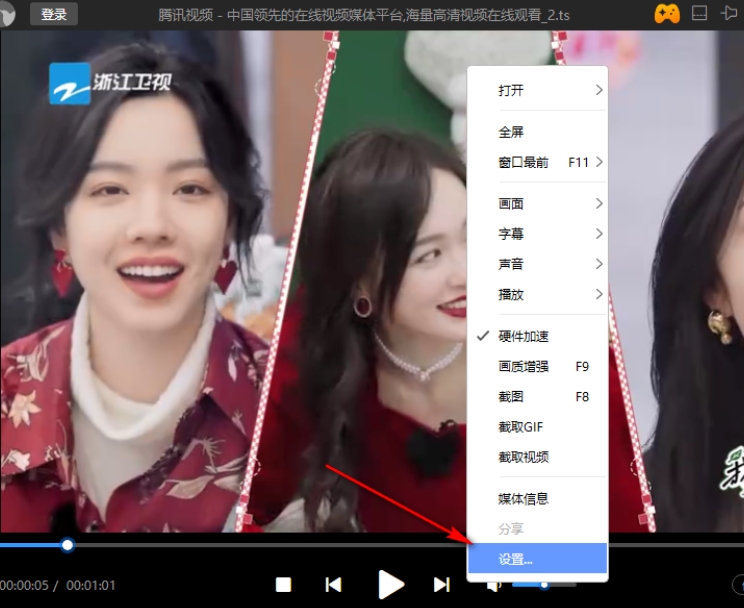
4. After entering, in the settings window that opens, click the [Screen] option on the left. You can see [Rendering Mode] on the right page, click the drop-down icon button, and select [Enhanced].

5. Although we return to the play page to play the video, we can see that the picture of our video will be clearer.

The above is the specific operation method on how to use Xunlei Video to set the rendering mode. Xunlei Video provides several rendering modes that can be set. You can choose the rendering mode according to the picture of your video. The general rendering mode is very useful for videos with unclear pictures. If you are interested, you can try it.

 How to add background music in python-How to add background music in python
 How to configure environment variables in python - How to configure environment variables in python
 How to run python - How to run python
 How to create a project in python - How to create a project in python
 How to make a blue sky background with scratch-How to make a blue sky background with scratch
 Microsoft Edge browser
 Steam
Steam
 Tencent Video
 WPS Office
 iQiyi
iQiyi
 Sohu video player
 Lightning simulator
 MuMu emulator
 Eggman Party
 What to do if there is no sound after reinstalling the computer system - Driver Wizard Tutorial
 How to switch accounts in WPS Office 2019-How to switch accounts in WPS Office 2019
 How to clear the cache of Google Chrome - How to clear the cache of Google Chrome
 How to fire bullets in scratch-How to fire bullets in scratch
