
Hot search terms: 360 Security Guard Office365 360 browser WPS Office iQiyi Huawei Cloud Market Tencent Cloud Store
Hot search terms: 360 Security Guard Office365 360 browser WPS Office iQiyi Huawei Cloud Market Tencent Cloud Store
programming tools Storage size: 27.50 MB Time: 2022-12-05
Software introduction: Python is a general-purpose computer programming language. Python is a very beneficial tool for programmers, allowing you...
PythonCore programming software is a very powerful dynamic programming language used in a variety of application areas.PythonSoftware is often compared with languages such as Java and Perl. So how to install Python? Let’s take a look next:
My operating system is: Windows 7, 32-bit
When installing python, we can either install it from the source code or use the compiled and packaged binary version. Here I choose the latter.
Step 1 Download the installation package
http://softwaredownload4.com/soft/14542.htm
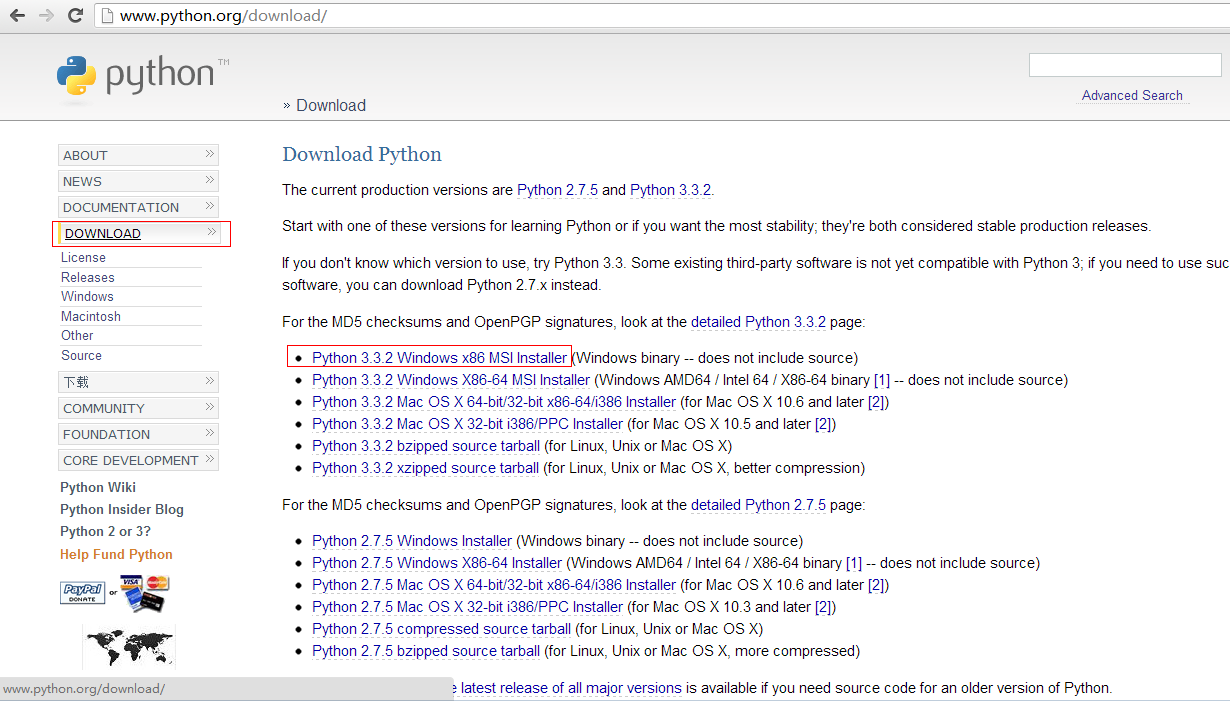
What I chose here is:/python-3.3.2.msi
Click to download and obtain: python-3.3.2.msi installation package. The installation package size: 19.3 MB
Step 2 Installation
Download and obtain: python-3.3.2.msi installation package. We can double-click python-3.3.2.msi to install it.
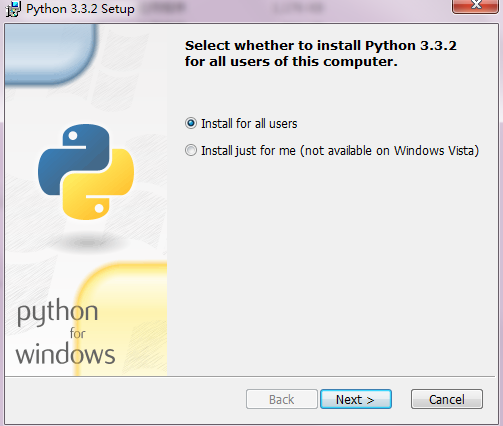
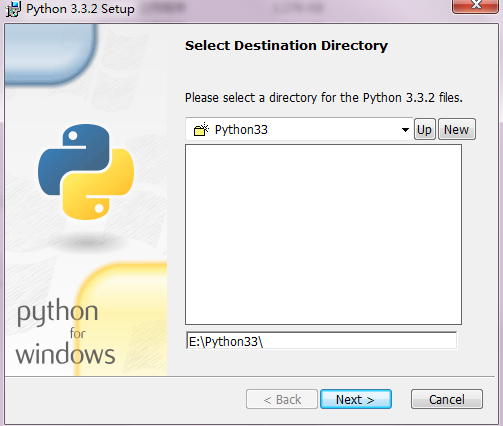
The directory I installed is: E:Python33
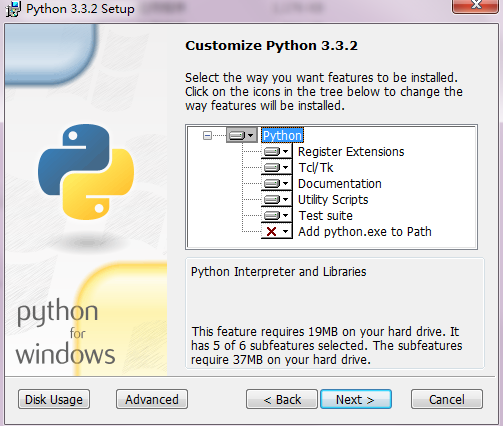
Click Next to proceed with the installation. The installation process will take a few minutes.
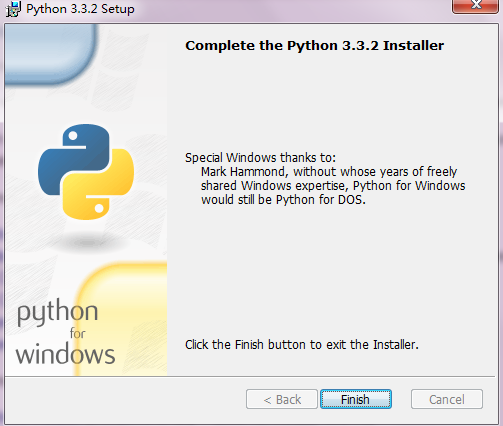
Click Finish to end the installation.
Step 3 Path Settings
Under normal circumstances, we can use Python directly after installing it. You can enter Python at the command line to see if you can enter Python's interactive mode.
If you cannot enter, there may be an environment variable problem and some adjustments need to be made.
Add the Python directory to the Windows path:
Command prompt: similar to the environment variable path %path%;C:Python, press Enter;
Or you can set environment variables in the graphical interface, Computer->Properties->Advanced System Settings->Advanced->Environment Variables
Step 4 Effect
Installation directory file after installation:
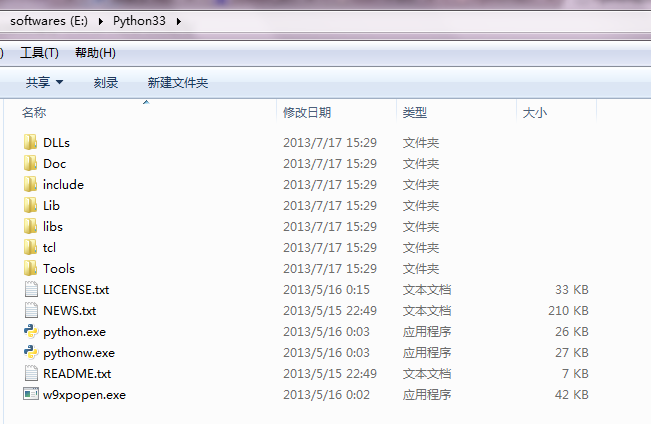
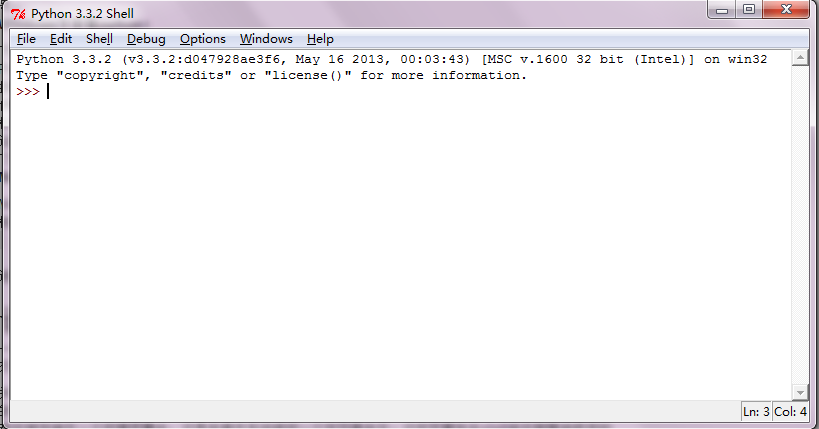
That's itpythonThe installation tutorial is very simple. MorepythonFor related questions, please go to the software tutorial area of Huajun Software Park!

 How to draw a lottery in 360 Software Butler - How to draw a lottery in 360 Software Butler
 How to collect software in 360 Software Manager - How to collect software in 360 Software Manager
 Microsoft Edge browser
 Steam
Steam
 Tencent Video
 WPS Office
 iQiyi
iQiyi
 Sohu video player
 Lightning simulator
 MuMu emulator
 Eggman Party
 What to do if there is no sound after reinstalling the computer system - Driver Wizard Tutorial
 How to switch accounts in WPS Office 2019-How to switch accounts in WPS Office 2019
 How to clear the cache of Google Chrome - How to clear the cache of Google Chrome
 How to fire bullets in scratch-How to fire bullets in scratch


